
Features
Everything PixLedger tracks, and everything it tells you about it.
Send events to Meta Pixel, GA4 and Google Tag Manager, and keep a complete record in your own WordPress admin. Free, with every event unlocked.
Providers
Three destinations, one place to check them.
All three send from the visitor’s browser. Each event gets its own row per provider, so you can see exactly where it went.
Meta Pixel
Loads the Meta Pixel and sends PageView, ViewContent, AddToCart, InitiateCheckout and Purchase under their standard names. Other events are sent under their own names.
Google Analytics 4
Loads gtag and sends page_view, view_item, add_to_cart, begin_checkout and purchase. Other events are sent as custom events in snake_case.
Google Tag Manager
Loads your container and pushes events to the dataLayer in the GA4 Enhanced Ecommerce schema.
Already running a tag? PixLedger detects common tracking plugins (including GTM4WP and Site Kit) and an existing Meta Pixel or GTM container, and skips loading a second copy. The settings page tells you what it found.
Event Log
Know what your tracking actually did.
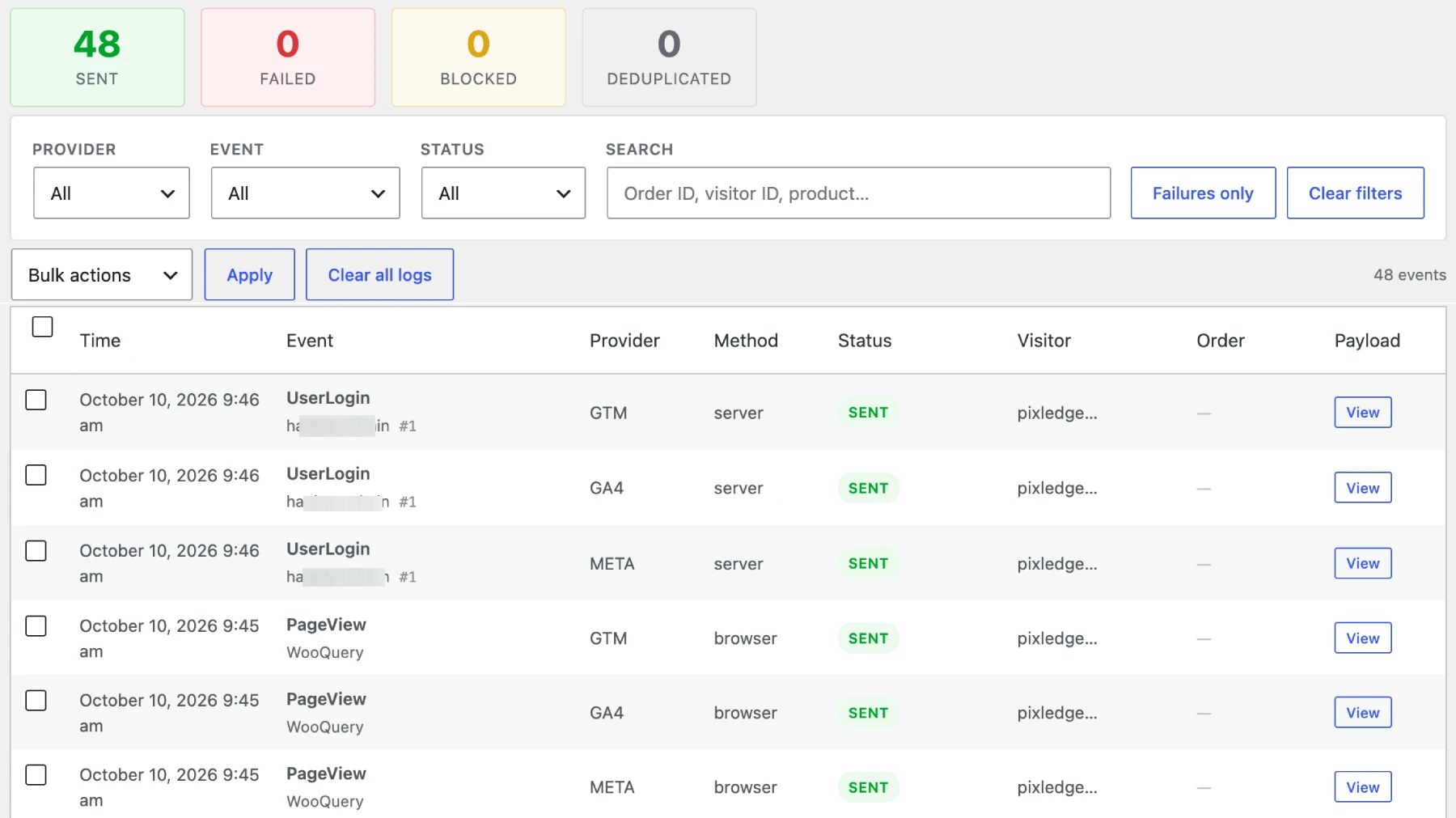
Every event is recorded locally with its status, its payload and, when something goes wrong, the reason.
Audit trail
Every event, in order.
Open PixLedger → Event Log in your WordPress admin and read what your store sent, row by row.
- Event name, with the product or page title underneath
- Provider, delivery method and a colour-coded status
- Order ID (when there is one) and a shortened visitor ID
- Expand any row to read the full JSON payload
Reasons
Failed and blocked events explain themselves.
A failed event keeps the error. A blocked event names the consent category that denied it. Hover a failed or blocked badge to read it.
- sent, failed, blocked_consent, no_provider, deduplicated
- Consent blocks show the category that said no
- No provider configured? That is logged too, so you notice

Filters
Narrow it down fast.
Combine filters, search, and jump to failures only. Clear all filters with one click.
- Provider, event and status
- Search by event name, product title or visitor ID
- Failures-only quick filter

Housekeeping
It cleans up after itself.
The log refreshes while you watch and deletes old rows on its own, so it does not grow forever.
- Auto-refresh every 10 seconds, paused when the tab is hidden
- Bulk delete, or clear all logs with a confirmation
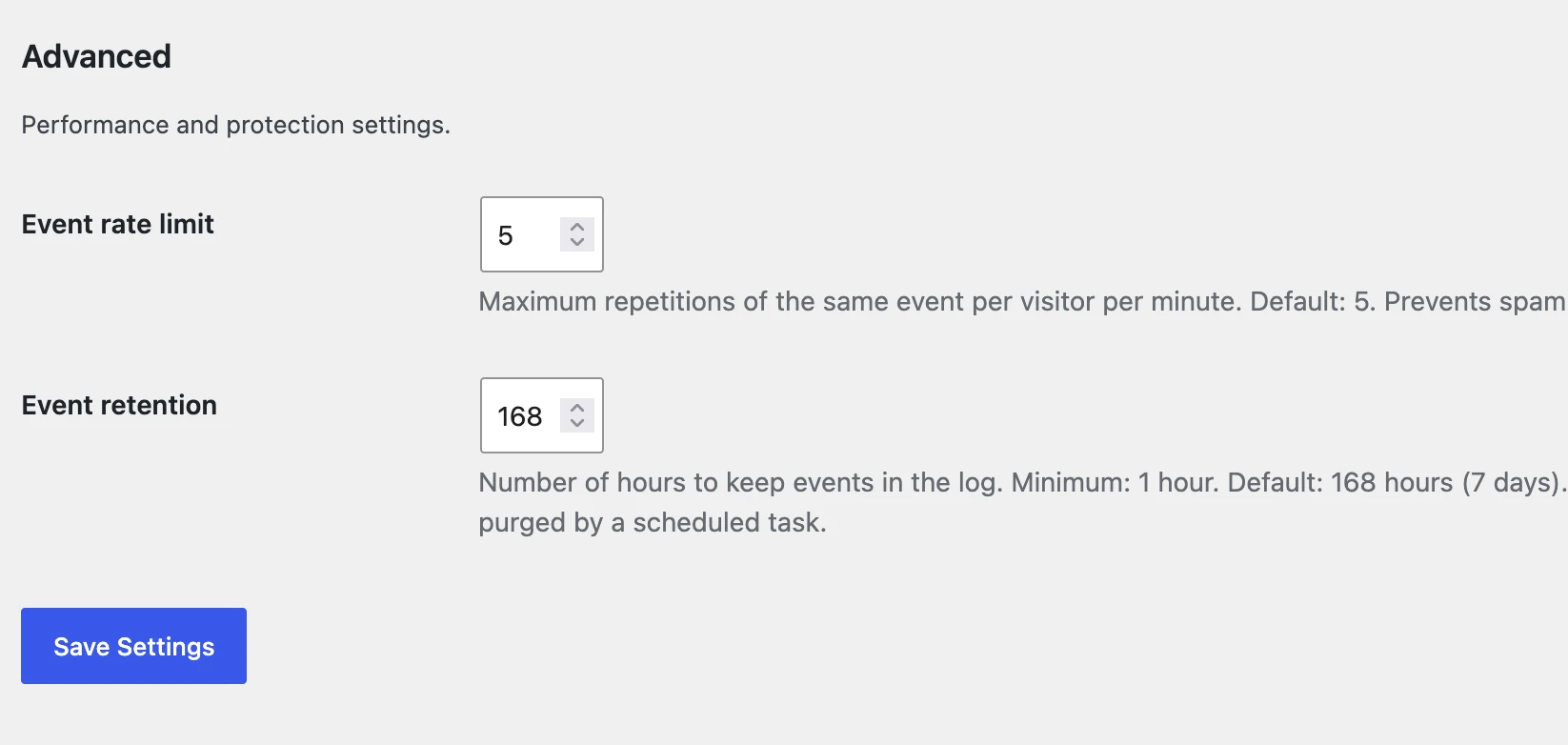
- Events kept for 7 days by default, adjustable in settings
Consent and privacy
Built around the visitor’s choice.
With Consent Mode switched on, PixLedger checks consent before an event is sent. The log stays in your own database.
Per-provider consent
Meta Pixel needs ad_storage and ad_user_data. GA4 and GTM need analytics_storage. With Consent Mode on, if one is denied, the event is blocked and logged.
Consent Mode v2
Set the default grant state for analytics_storage, ad_storage, ad_user_data and ad_personalization.
Hashed email
Customer email addresses are stored SHA-256 hashed in the log.
Your database
The log lives in your WordPress database. There is no PixLedger account and no external dashboard.
Event catalogue
More than 20 built-in events.
Switch each one on or off in the settings. Scroll depth is off by default.
WooCommerce
ViewContent, AddToCart, RemoveFromCart, CartView, InitiateCheckout, AddPaymentInfo, AddShippingInfo, CouponApplied, Purchase, OrderRefunded, ProductReview
Clicks
OutboundLinkClick, PhoneClick, EmailClick, DownloadClick
Forms and search
FormSubmit, SearchPerformed, SearchEmpty
Pages
PageView, NotFound404, PageScrolled (25, 50, 75, 100%)
Accounts and content
UserLogin, UserRegister, CommentPosted
Custom events
Track anything else, with or without code.
Send your own events to the same log, with the same consent checks and rate limiting.
With an HTML attribute
No JavaScript needed. Add the attribute to a button or link and PixLedger tracks the click.
<a href="/pricing/" data-pxl-event="PricingViewed">See pricing</a>With the JavaScript API
Call it from your own code, for example after a custom form or widget finishes.
pxl('track', 'DemoRequested', { plan: 'agency' });Under the hood
Small things that keep your data clean.
Visitor ID
An anonymous 90-day cookie ties a visitor’s events together in the log. It is not tied to a name or email.
Attribution capture
UTM parameters and the click IDs fbclid, gclid, ttclid and msclkid are captured, and saved with the order on WooCommerce purchases.
Rate limiting
Repeated identical events from one visitor are capped per minute (5 by default, 1 to 100) to keep the log readable.
Works without WooCommerce
WooCommerce events load only when WooCommerce is active. Everything else works on any WordPress site.
A small frontend script
The tracker is a small vanilla JavaScript file loaded in the footer. It batches events and sends them in groups.
Developer hooks
Filters and actions with a pixledger_ prefix let you extend PixLedger.
Good to know.
The free version is deliberately simple. Here is what it does not do today.
Browser-side only
Events leave from the visitor’s browser, so ad blockers and browser privacy settings can still stop delivery. PixLedger shows you what it dispatched. Server-side delivery is planned for a Pro version.
Consent Mode is off by default
Until you switch it on in the settings, all events are allowed. When it is on, PixLedger reads its own consent cookie or a PHP filter. There is no built-in connection to specific banner plugins yet.
Consent updates apply on the next page load
If a visitor changes their choice in a banner, the new state is used from their next page, not the one they are on.
See it on your own store.
Install PixLedger, connect your pixels, and open the Event Log.